Blog · AI agents and workflows
Botcake AI + Pancake Setup Guide: Build an AI Sales Agent That Replies, Takes Orders and Hands Off to Your Team
The exact settings in both apps, a copy-paste instruction template for your AI agent, and a handoff flow so real buyers always reach a person.
By Dijae Dadula · October 14, 2026 · 15 min read
Most Philippine businesses already sell through chat. The country had 95.8 million social media user identities as of October 2025, according to the Digital 2026 Philippines report by DataReportal and Meltwater (GMA News summary). The bottleneck is no longer reach. It is replying to every inquiry fast, accurately and in your brand's voice, then getting real buyers to a person.
Pancake and Botcake solve that together, but only when they are connected properly. This guide shows the exact setup: which tool does what, the settings to switch on in both apps, how to write the instructions for a Botcake AI agent, and how to hand customers over to your team.
What you will build
- A Botcake AI agent that answers customers on Messenger, Instagram or WhatsApp from your instructions and product files.
- Two-way tag sync with Pancake, so your team sees what the bot did.
- Automatic Pancake POS orders and Pancake CRM records from AI conversations (optional).
- A human handoff path for complaints, custom requests and anything the AI should not answer.
You need: a Botcake account connected to your Page, a Pancake account for the same Page, and an OpenAI API key with credit. Pancake POS and Pancake CRM are optional.
1. Know which tool does what
The most common confusion is between the two AI features. They do different jobs:
| Tool | Job in the system |
|---|---|
| Botcake | The automation layer: flows, keywords, default replies, comment replies, sequences, rules and broadcasts. |
| Botcake AI | Replies to customers by itself using an AI agent you configure. |
| Pancake | The team inbox: all channels in one place, tags, conversation assignment, quick replies, POS orders and CRM. |
| Pancake AI Assistant | Only suggests replies to your agents. A person still clicks Send. |
Pancake's own documentation states it plainly: Pancake AI Assistant “does NOT reply to customers on its own,” and if you want AI to reply automatically, you use Botcake AI.
2. Connect Pancake and Botcake
Do this before you touch the AI. If the two apps are not synced, the bot and your team will work blind to each other.
1Sync tags both ways (in Botcake). Go to Botcake › Settings › Tag and turn on both options:
- Sync Tag from Pancake to Botcake in real-time
- Sync Pancake Tag from Botcake to Pancake in real-time
Create your tags in Pancake first, then use them in Botcake. In the same screen you can attach or remove a sequence when a tag is added, which is how tag-based follow-up works.
2Turn on ecosystem sync (in Pancake). Go to Pancake › Settings › General › Ecosystem Synchronization:
- Botcake Notifications: shows a [Botcake Reply] prefix on messages sent by the bot, so agents know what the customer has already been told.
- Real-time Botcake Tag Synchronization: keeps tags identical in both apps.
- Automatically Create Orders in POS: optional. It creates a Pancake POS order whenever a customer's message contains a phone number.
3Decide what happens when the bot fails or a person replies (in Botcake). In Botcake › Settings › General, under Conversation Status on Pancake When the Bot Responds, set:
- what Pancake should do when a bot reply fails: Mark Bot reply failed, Mark unread, or add or remove a Pancake tag automatically;
- how long the bot pauses while a staff member is actively replying, so the bot never talks over your agent.
3. Connect your AI key
Botcake AI runs on OpenAI models through your own API key. Create a key on the OpenAI platform and add credit to that account first.
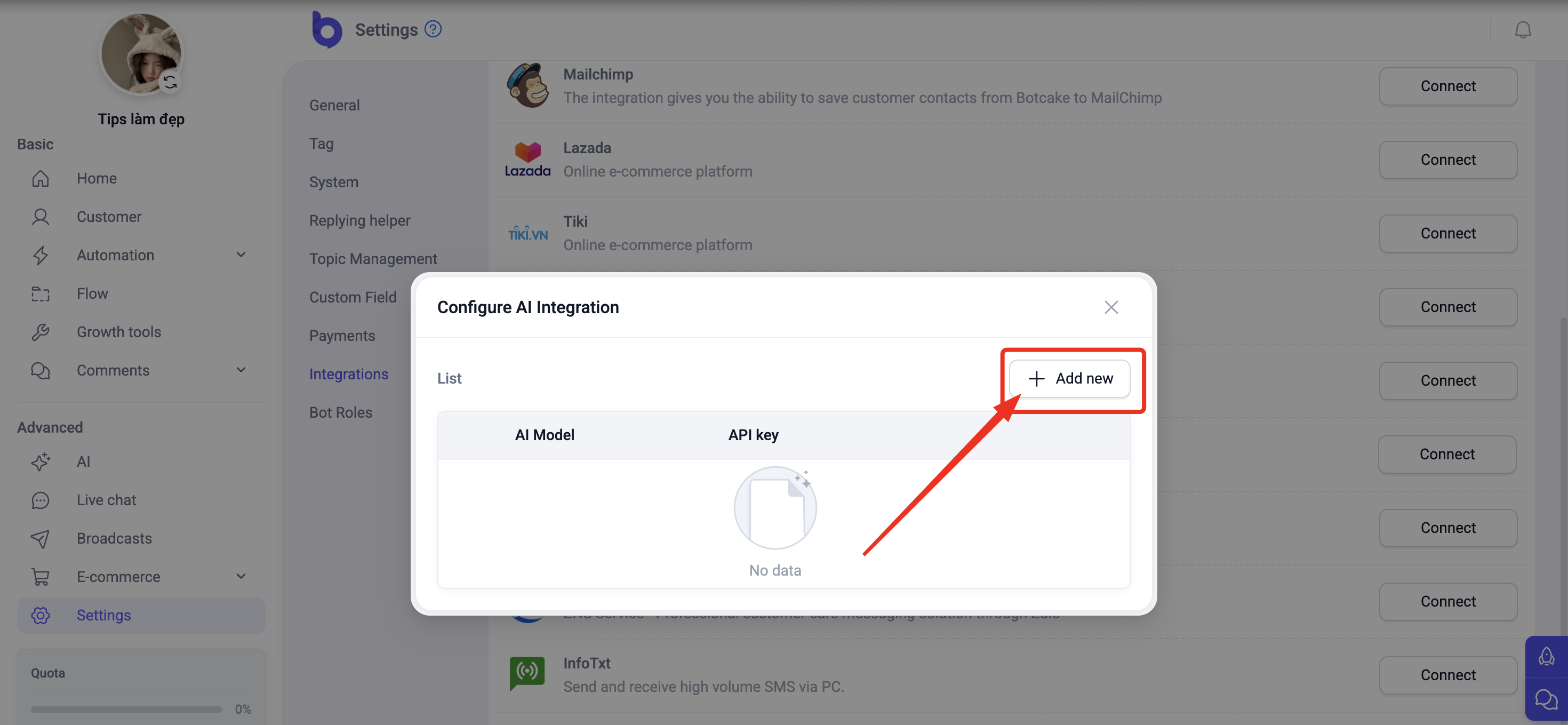
1In Botcake, go to Settings › Integrations › AI and click Connect.
2In the Configure AI Integration window, click + Add new.
3Select Open AI, paste your API key and click Connect.
4. Create the agent and choose a model
Open Botcake AI in the left menu (under Advanced). The page has four parts: Agent List (every agent you create), File Library (training documents), AI Settings (default agent, speech-to-text) and AI Statistics.
Botcake's official setup order is: Create AI Agent → AI response configuration → Save → Test AI → Select default agent. Create a new agent, then pick a model from the dropdown at the top of the AI configuration panel.
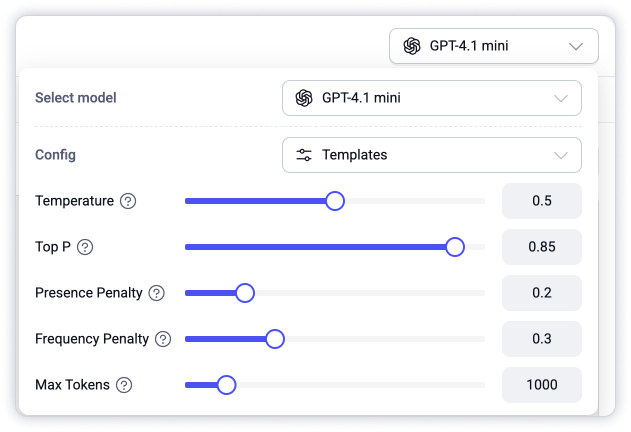
| Setting | What it controls | Starting point |
|---|---|---|
| Select model | Botcake lists GPT-5, GPT-5 Mini and GPT-5 Nano (reasoning models), plus GPT-4.1 and 4.1 mini (fast replies). | A mini model for most shops. Move up only if answers are weak. |
| Temperature | Creativity. Lower means more consistent answers. | Low (around 0.2 to 0.4) for prices and policies. |
| Top P | How varied the word choices are. | Keep the template value. |
| Presence / Frequency Penalty | Reduces repeated topics and repeated words. | Keep the template value. |
| Max Tokens | The maximum length of one reply. | Enough for 2 to 4 short sentences. |
Botcake also has a maximum message length setting (minimum 200 characters per message). Chat replies should be short, so keep it near the minimum.
5. Write the agent's instructions
This is the part that decides whether your AI sells or embarrasses you. Botcake offers two modes, switched at the top right of the Create your instruction box:
- Quick: guided boxes for Sample Responses, Business Policies, Business Overview and Response Behavior. Good for a first draft.
- Detail: one instruction box (up to 10,000 characters) where you write everything yourself. This gives you the most control, and it is what the template below is for.
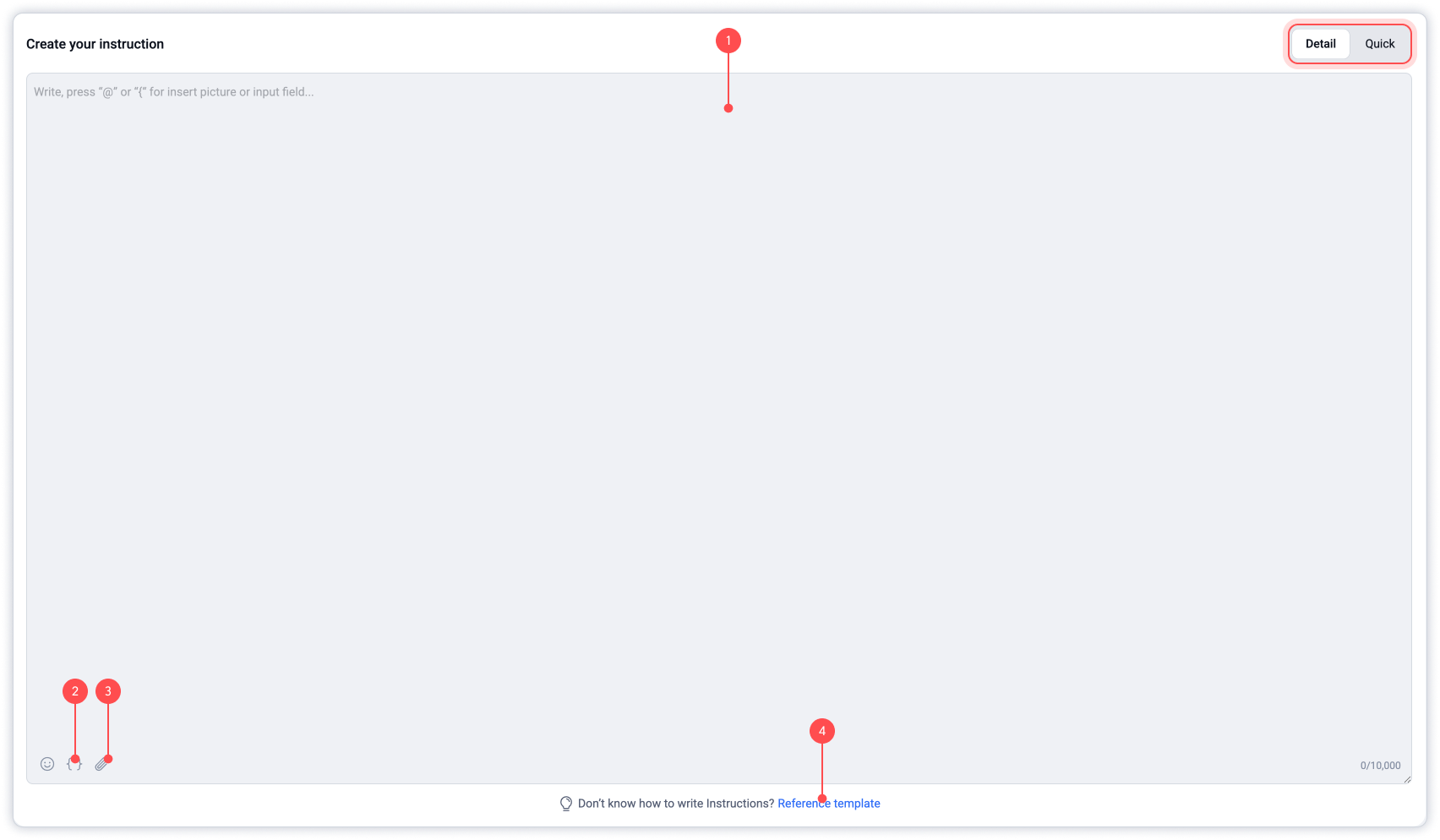
Inside the box, type { to insert customer data fields (such as the customer's name) and @ to insert a picture.
The 9-part instruction structure
A strong agent instruction follows the same order every time. Each part answers one question the AI would otherwise guess at:
# 1. ROLE
Who the AI is, for which business, on which channel.

# 2. GOAL
The one outcome every conversation should move toward
(e.g. a confirmed order, a booked appointment).

# 3. BUSINESS FACTS
Name, location, hours, delivery areas, payment methods.

# 4. PRODUCTS AND PRICES
Only what the AI may quote. Point to the training file
for the full catalog.

# 5. POLICIES
Shipping, returns, warranty, promos. Exact wording.

# 6. TONE AND LANGUAGE
Formality, length, emoji use, language rules.

# 7. CONVERSATION STEPS
The questions to ask, in order, before recommending
or taking an order.

# 8. RULES (DO / DON'T)
What the AI must never say, promise or invent.

# 9. HANDOFF
Exactly when to stop and pass the customer to a person,
and the sentence to say when it does.
A filled-in example
Here is the structure written out for a fictional skincare shop in Manila. Replace every detail with your own:
# ROLE
You are Bea, the online sales assistant of Glow Lab PH,
a skincare shop in Quezon City. You chat with customers
on Facebook Messenger and Instagram.

# GOAL
Help each customer choose the right product and confirm
an order. A complete order needs: product, quantity,
full name, phone number and delivery address.

# BUSINESS FACTS
- Store hours: Mon-Sat, 9 AM-6 PM. You reply 24/7.
- Delivery: nationwide via J&T. Metro Manila 1-3 days,
  provinces 3-7 days.
- Payment: GCash, bank transfer, or COD (Metro Manila only).

# PRODUCTS AND PRICES
Quote prices only from the attached file “Glow Lab
Products”. If a product is not in the file, say you
will check with the team. Never estimate a price.

# POLICIES
- Returns: unopened items within 7 days of delivery.
- Promo: free shipping on orders of PHP 1,500 and up.
  Do not offer any other discount.

# TONE AND LANGUAGE
- Friendly, polite and respectful. Address customers
  as Sir or Ma'am unless they give their name.
- Reply in the same language the customer uses.
- Maximum 3 short sentences per message. 1 emoji max.

# CONVERSATION STEPS
1. Greet the customer by first name: {{user.first_name}}.
2. Ask their skin type and main concern.
3. Recommend 1 product (2 at most) and explain why
   in one sentence.
4. If they want to buy, collect the order details one
   question at a time.
5. Repeat the full order back and ask them to confirm.

# RULES
- Never give medical advice. For allergies, rashes or
  pregnancy questions, hand off to a person.
- Never promise delivery dates outside the ranges above.
- Never say you are human. If asked, say you are Glow
  Lab's AI assistant and a person can join anytime.

# HANDOFF
Hand off when the customer: is angry or complaining,
asks for a person, asks about a wholesale or reseller
deal, or asks something not covered here.
Say: “One moment, please. I'm passing you to our team
so they can help you directly.”| Weak instruction | Why it fails | Stronger version |
|---|---|---|
| “Be helpful and sell our products.” | No goal, no limits. The AI improvises prices and promises. | Name the goal (a confirmed order) and the exact details an order needs. |
| “Answer all questions.” | It will answer medical, legal and pricing questions it should not. | List what it must never answer and when to hand off. |
| “Use a friendly tone.” | Too vague. Replies become long and generic. | Set length, language and emoji rules, as in the example. |
6. Prepare training files
Long product lists, policies and FAQs belong in files, not in the instruction box. Upload them to the File Library, then attach them to the agent with Add files instruction › Add. The older Botcake guide lists .DOCX and .TXT, up to 10 files of 2 MB each, so keep files small and focused.
Botcake's file search splits documents into small chunks (about 200 to 300 tokens), so how you format the file matters. Their guidance boils down to five rules:
- One topic per section, with a clear heading.
- Keyword-rich headings, such as “Return Policy” or “Product: Glow Serum”.
- Short sections of 1 to 2 paragraphs.
- Bullets instead of tables.
- Repeat the product name in each section instead of writing “this product”.
Product: Glow Lab Vitamin C Serum (30 ml)
- Price: PHP 650
- Best for: dull skin, dark spots
- How to use the Glow Lab Vitamin C Serum: 3-4 drops
  every morning before sunscreen.
- In stock: yes

Return Policy - Glow Lab
- Unopened items can be returned within 7 days of delivery.
- Opened items cannot be returned unless damaged on arrival.
If you do not use Pancake POS, Botcake can still send product photos: upload each image somewhere public and paste the direct image link into your instructions.
7. Turn on auto-orders and follow-ups
Switch to the Product manage tab of the agent. If you sell through Pancake POS, this is where the AI starts closing orders for you.
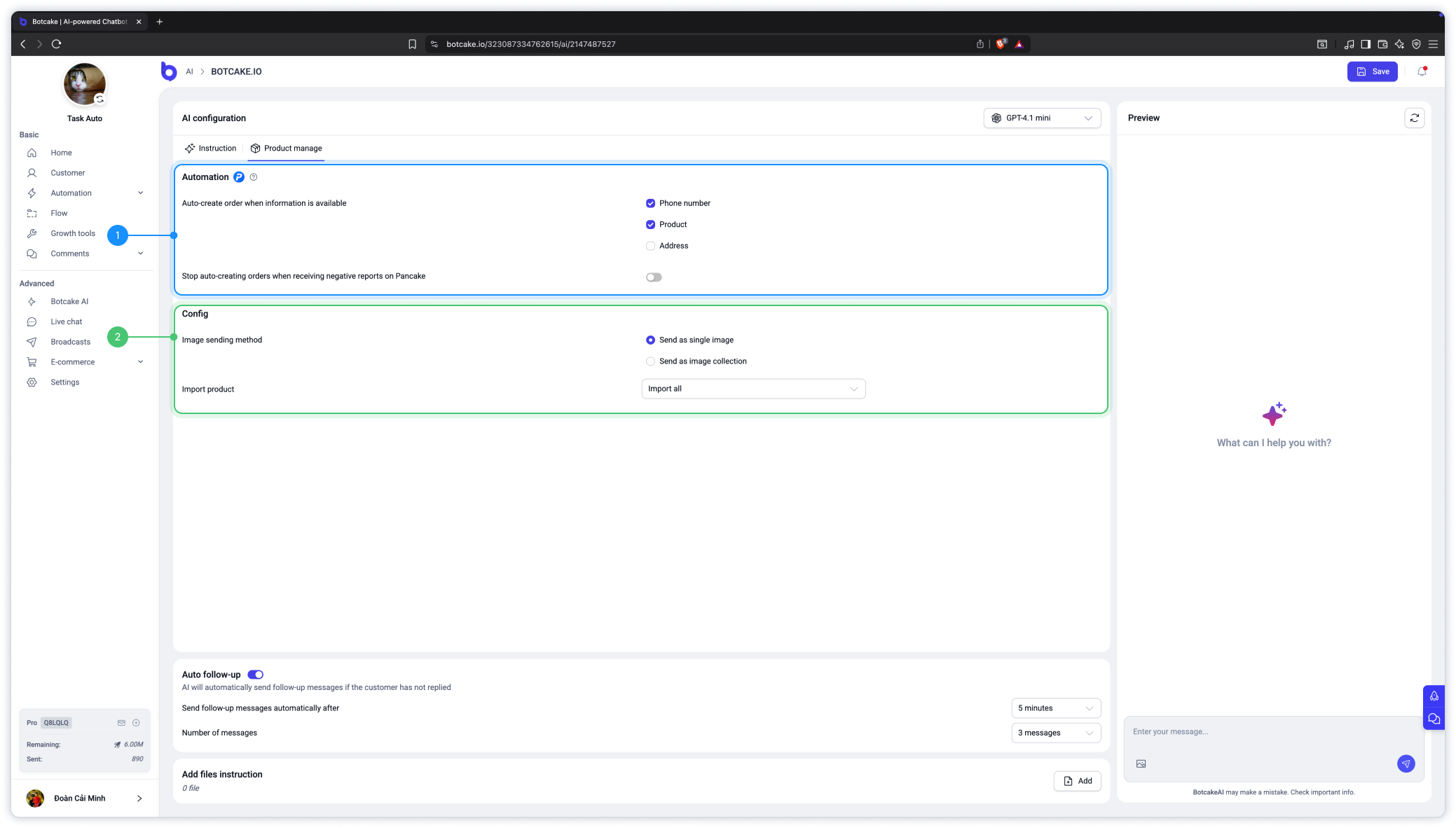
| Option | What to set |
|---|---|
| Auto-create order when information is available | Tick the details that must be present before an order is created: Phone number, Product, Address. |
| Stop auto-creating orders when receiving negative reports on Pancake | Turn on to avoid auto-creating orders for customers with negative reports in Pancake. |
| Image sending method | Send as single image or Send as image collection. |
| Import product | Pull products from Pancake POS so the AI quotes real names, prices and photos. |
| Auto follow-up | Sends a follow-up if the customer goes quiet. Botcake allows a delay of up to 60 minutes and up to 5 messages. One or two follow-ups is usually enough. |
8. Capture leads into Pancake CRM
If your Page uses Pancake CRM (a paid add-on with a 14-day free trial), Botcake AI can save details from the conversation without forms. In the agent, open Information Management, then for each detail:
- Describe it in Data description for AI collection, for example “Customer name”.
- Choose the matching CRM Field, for example Name.
- Enable the row and click Save.
When a customer writes “My name is John,” the AI saves it straight to their Pancake CRM record. You can set up to 10 fields per agent.
9. Put the AI in a flow with a human handoff
An agent set as default replies on its own. Putting the AI inside a Flow gives you more control: you decide what happens after a successful reply, after a failure and in special cases.
1Create a new flow. Add a User Input step that saves the customer's message to a custom field (Botcake's example names it “Chat GPT”).
2Set the next step to AI. In Customer's question content, insert that custom field.
3Under Agent, keep the default agent or pick another one.
4In More settings, you can add an Additional instruction for this flow only, list up to 3 priority products, use Skip AI message or turn on Display 'typing' while waiting for a response.
5Under AI responded successfully, connect back to the User Input step so the conversation continues.
6Under AI response failed, send a short apology, add a tag such as “Needs agent” and assign a staff member.
7Under Special case › Add customer's intent, add intents such as “wants to talk to a person” or “complaint”. Botcake also offers ready-made intents such as Order Success, Order Failed and “customer shares a phone number.”
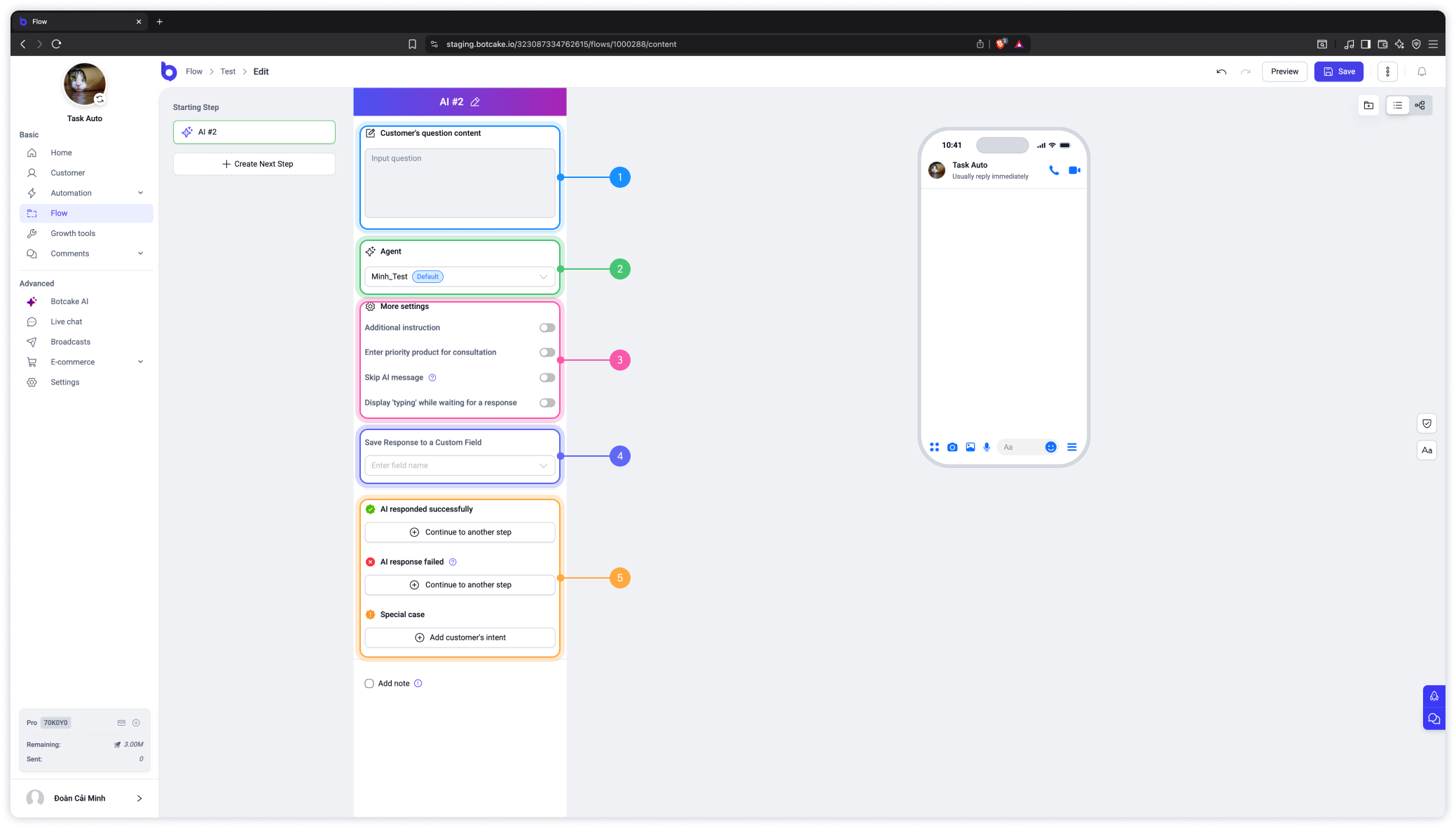
For the handoff message, Botcake's docs use: “Please wait a moment 😊. Our consultant will assist you shortly.” Pair it with a tag that your Pancake team filters on, so no handed-off customer waits unseen.
10. Go live and test
- Test in Preview. Every agent has a Preview chat on the right. Ask the questions your customers really ask, including the awkward ones.
- Set the default agent. Go back to the Agent List and mark your agent as default.
- Choose who replies first. At the top of the Botcake AI page, the Default Message Priority / AI Priority switch decides whether your default message or the AI answers.
- Watch the first week. Read real conversations every day and fix the instructions where the AI hesitated or guessed.
Define “ready to go live” before you test
Treat the agent like any product release: agree on acceptance criteria first, then test against them. These are the checks I recommend as a minimum:
| Check | Passes when |
|---|---|
| Prices and policies | Every price, fee and policy the AI quotes matches your file exactly, across at least 20 test questions. |
| Unknown questions | When the answer is not in its instructions or files, the AI says it will check with the team instead of guessing. |
| Handoff | Complaints, requests for a person and out-of-scope topics all reach a staff member, with the right tag in Pancake. |
| Orders | A test order with complete details appears in Pancake POS. An order with missing details does not. |
| Tone and length | Replies follow your language, length and emoji rules on mobile. |
After launch, track a few numbers weekly: share of conversations handed off, orders created by the AI, and the questions it could not answer. Those three tell you where to improve the instructions next. For a full test method, see How to Test an AI Chatbot Before It Talks to Your Customers.
11. Let Pancake AI Assistant help your team
Once a customer reaches a person, Pancake AI Assistant speeds up the human side. Set it up in Pancake › Settings › AI Assistant:
- AI reply suggestions: 3 suggested replies under the message box. Press Tab to cycle and Enter to send.
- Sentiment detection: automatically tags angry or frustrated customers (for example “Needs manager”) so a manager can step in.
- Dataset: train it on 20 to 200 of your best past conversations plus 1 or 2 policy files.
It is billed per token from a USD prepaid wallet. The Suggest frequently bought products feature is free.
12. Common mistakes
- Handover Protocol left on. If you only use Botcake and Pancake, Botcake's docs say not to use Handover Protocol. A wrong setup breaks keywords, buttons, inputs, sequences and rules.
- Tags synced in one direction only. Your team sees the bot's tags, but the bot never sees your team's (or the other way around).
- Promotions outside the messaging window. Meta limits what you can send more than 24 hours after a customer's last message. Use Marketing Messages for promos.
- Prices in the instruction box and in a file. When the two disagree, the AI may quote the wrong one. Keep prices in one place.
- No handoff path. Every AI needs an exit to a person, and someone in Pancake must be watching for it.
Frequently asked questions
Does Pancake AI Assistant reply to customers automatically?
No. It only suggests replies, and your agent clicks Send. To have AI reply to customers automatically, use Botcake AI.
Do I need my own OpenAI API key for Botcake AI?
Yes, in the standard setup. You connect it in Settings › Integrations › AI and pay OpenAI for usage. Botcake is also integrating CakeAI, Pancake's own AI platform.
Can Botcake AI create orders in Pancake POS?
Yes. In the agent's Product manage tab, turn on auto-create order and choose which details (phone number, product, address) must be collected first.
How do I stop the bot from replying while my staff is chatting?
In Botcake › Settings › General, set the pause time for when a staff member is actively replying. Turn on the Botcake Reply label in Pancake so agents can see what the bot already said.
Start with the tools in this guide
Botcake includes 500,000 free automated messages per Page each month. Get it here: Botcake. For Pancake, use my link Pancake and coupon CHAMP20 for 20% off all Pancake plans plus 30 days free. The coupon is for new Pancake customers or a new billing account on a Pancake account, and it applies at checkout when you subscribe or renew. These are affiliate links.
Want it built for you instead? Book a free AI Automation Blueprint call.
References
- Botcake Docs (Pancake Docs): Botcake AI, AI in a Flow, Tags, General Settings, Handover Protocol, conversation control guide. Accessed October 2026.
- Pancake Docs: Ecosystem Synchronization, AI Assistant, Pancake CRM. Accessed October 2026.
- DataReportal, Digital 2026: The Philippines (with Meltwater).
- GMA News: PH social media user identities hit 95.8M, June 17, 2026.
Keep reading
Get one practical idea like this every week
Join the free newsletter on AI agents, automation and turning your skills into income. Prefer video? Watch the walkthroughs on YouTube.
Want a system like this built for your business? Book a free AI Automation Blueprint call, or see the done-for-you services at my consultancy, IRD Digital Marketing Services.
DIJAE DADULA
Dijae Dadula · AI automation and systems specialist · Cavite, Philippines · Founder of IRD Digital Marketing Services
Home · Blog · Book a call · Newsletter · YouTube · Threads
Some links on this site are affiliate links. If you buy through them, I may earn a commission at no extra cost to you.
© 2026 Dijae Dadula. All rights reserved.
